You just bought a reMarkable Paper Pro. Maybe you unboxed it twenty minutes ago. Maybe you've been staring at that perfect e-ink display for a few days, writing random notes, and thinking "there has to be more to this."
There is. And it starts with templates.
Not the stock ones that shipped with your device -- those are fine for basic lined paper, but they're not built for the world we live in now. The world where you can write something by hand, photograph or export it, and have an AI model turn it into structured output in seconds. Meeting notes become action items. Diagrams become documentation. Brainstorms become project plans.
But here's the thing nobody tells you: the quality of your AI output depends entirely on the quality of your input. And "quality" in this context doesn't mean perfect handwriting. It means structure. It means giving the AI enough context to understand what each section of your page is for, so it doesn't have to guess.
That's what AI-optimized templates do. And that's what this post is about.
Why the Paper Pro Changes the Template Game
The reMarkable Paper Pro is the first device in the lineup with a color e-ink display. That matters more than you'd think for template design.
Previous reMarkable devices were grayscale only. Templates had to rely on layout structure alone -- borders, zones, headers, line weight -- to communicate section boundaries. That worked, but it was limited. You couldn't use color to differentiate a "context" zone from an "action items" zone from an "AI command" zone.
With the Paper Pro's color display, template designers can now use subtle color coding to guide both the human writer and the AI parser. A light blue zone means "metadata." A light green zone means "decisions." A light purple zone at the bottom means "tell the AI what to do with this page."
This isn't just a cosmetic upgrade. It fundamentally changes how reliable AI parsing becomes, because the zones are visually distinct even when your handwriting wanders across boundaries.
The Resolution Advantage
The Paper Pro also ships with a higher-resolution display than the reMarkable 2. For templates, this means finer grid lines, smaller helper text within zones, and crisper anchor markers that help AI orientation. When you export a page as PDF, those fine details survive, and the AI model can use them as structural cues.
In practice, this means templates designed for the Paper Pro can pack more guidance into the same page without feeling cluttered. And that guidance translates directly to better AI output.
What Makes a Template "AI-Optimized"?
Let's be specific about what separates an AI-optimized template from a regular notebook page. There are five characteristics:
- Zone boundaries. Clear visual borders that separate different types of content -- notes, metadata, action items, context, and AI commands. The AI model doesn't read your page like a human. It needs structural cues to know where one section ends and another begins.
- Context headers. Pre-printed labels or prompts within each zone that tell both you and the AI what belongs there. "Date / Project / Attendees" at the top of a meeting page, for example.
- Anchor markers. Small reference points (corners, crosshairs, zone numbers) that help the AI orient the page correctly even if it's scanned at a slight angle or cropped oddly.
- AI command area. A dedicated space -- usually at the bottom of the page -- where you write instructions to the AI. Things like "Extract all action items with owners and deadlines" or "Turn this diagram into a Mermaid flowchart."
- Consistent layout grammar. Every template in a collection follows the same structural rules. The AI command area is always in the same position. Context headers always follow the same pattern. This consistency means the AI model can learn the template "language" once and apply it across every page.
Stock templates don't have any of this. They're just lines and grids. Which is fine if you're journaling, but useless if you want AI to do anything meaningful with your handwriting.
The Five Templates Every Paper Pro Owner Needs
We've open-sourced a collection of five templates that cover the most common professional workflows. Each one is designed around the five principles above, and each one has been tested extensively with Claude, ChatGPT, and Gemini for reliable parsing.
1. Architect Canvas
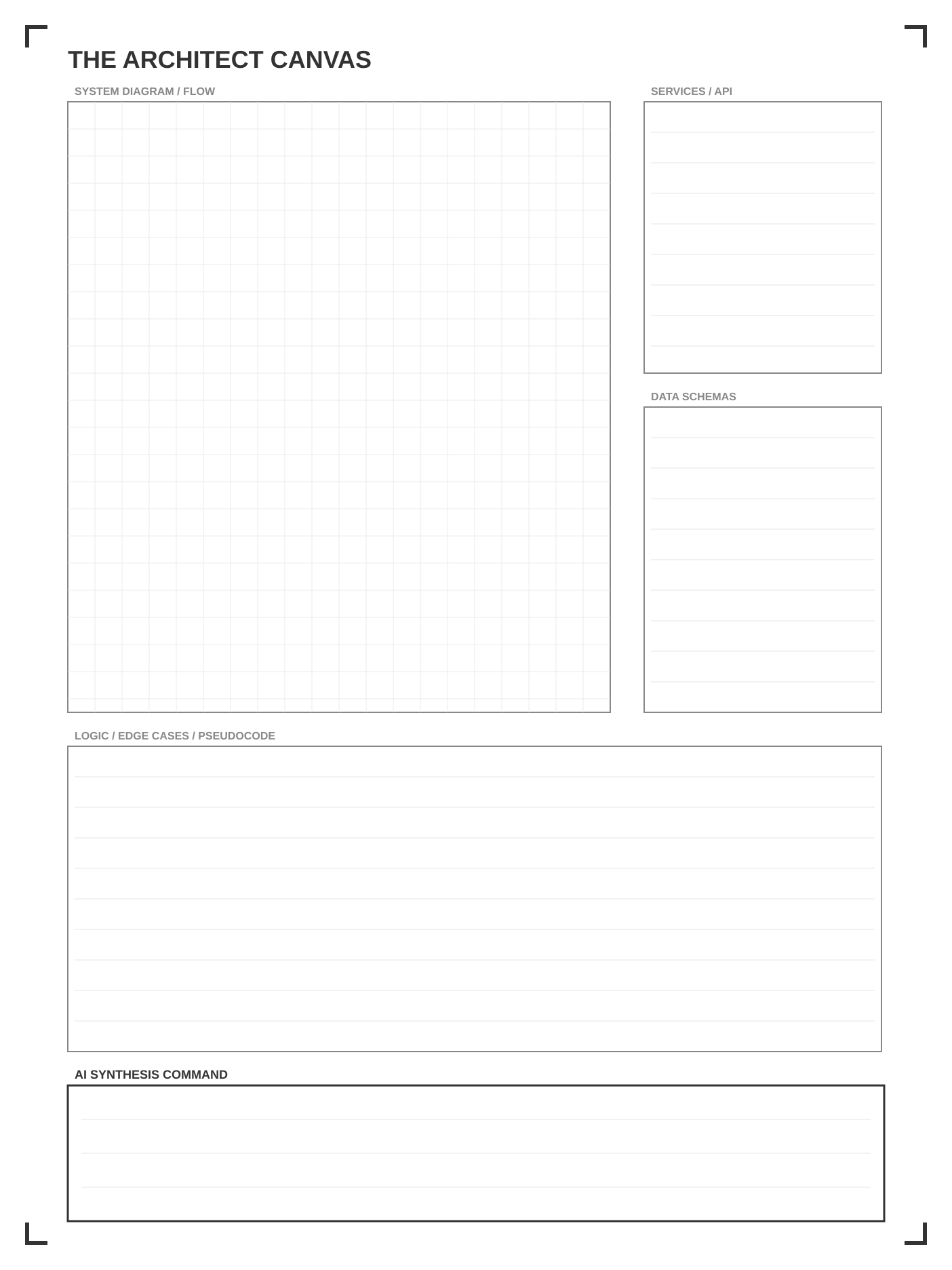
Who it's for: Engineers, system designers, technical leads.
The Architect Canvas is built for the kind of thinking that happens on whiteboards -- system diagrams, data flow maps, dependency trees, architecture decisions. The left two-thirds of the page is a freeform drawing area with a subtle dot grid. The right third is divided into structured zones: components list, constraints, open questions, and the AI command box.
In practice, you sketch your system on the left, annotate the structured zones on the right, and write something like "Convert this diagram to a Mermaid flowchart and list all components with their dependencies" in the AI command area. Export as PDF, drop it into Claude, and you get clean documentation back.
The key insight is the separation of visual thinking (the diagram) from structured thinking (the annotations). The AI uses both, but it relies on the structured zones to interpret ambiguous parts of the diagram.
2. Strategy Canvas
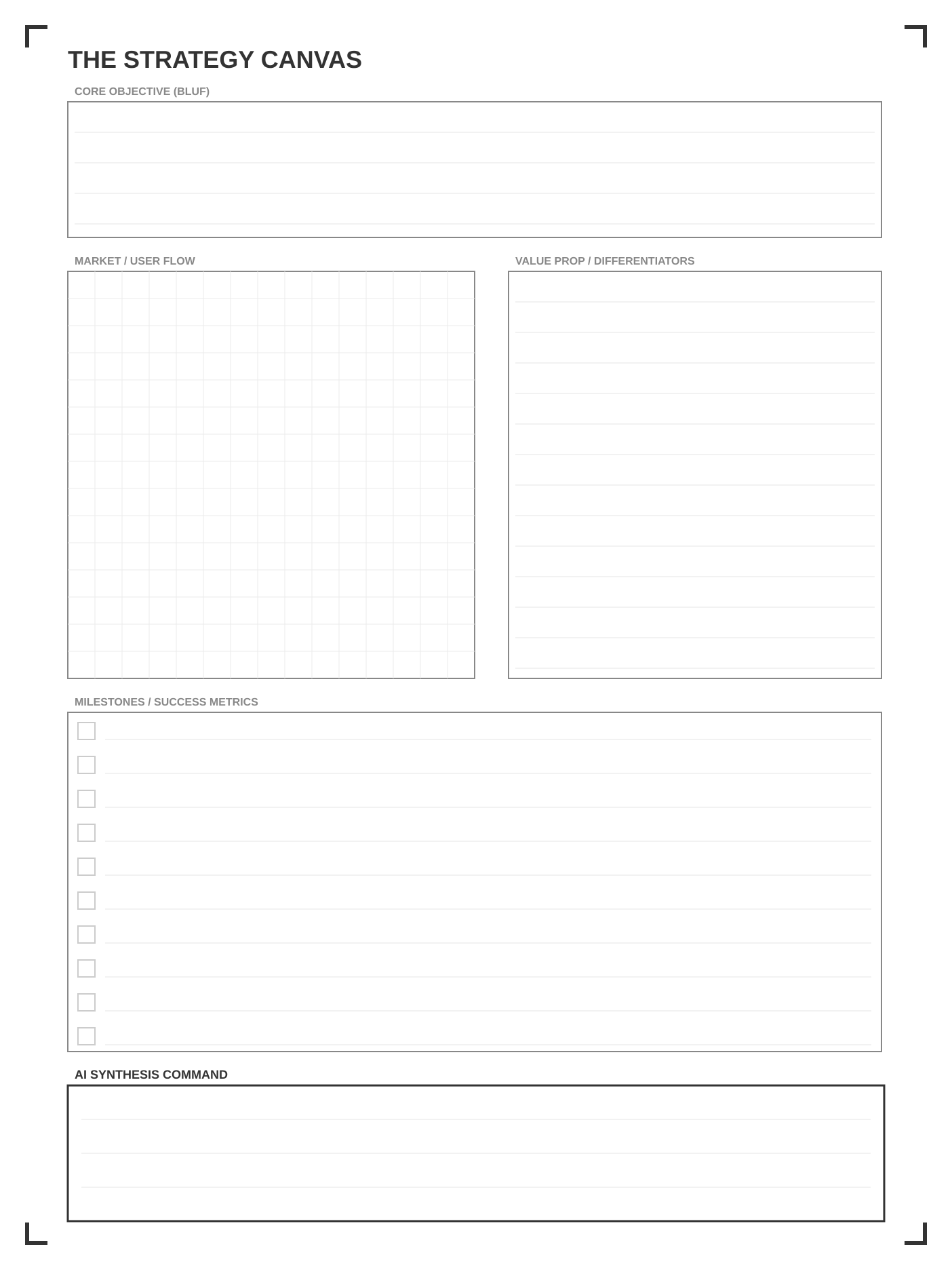
Who it's for: Product managers, founders, anyone making prioritization decisions.
This is a quadrant-based layout for feature triage, roadmap planning, and strategic prioritization. Four main zones for mapping items along two axes (typically impact vs. effort, but you label them yourself). Plus dedicated sections for "Must-do," "Blocked by," and a decision log.
The AI command area on this template is particularly powerful because the quadrant structure gives the model spatial information. "Summarize everything in the top-right quadrant as high-impact-low-effort wins and create Jira tickets" actually works, because the AI can see where each item falls.
3. Orchestrator Canvas
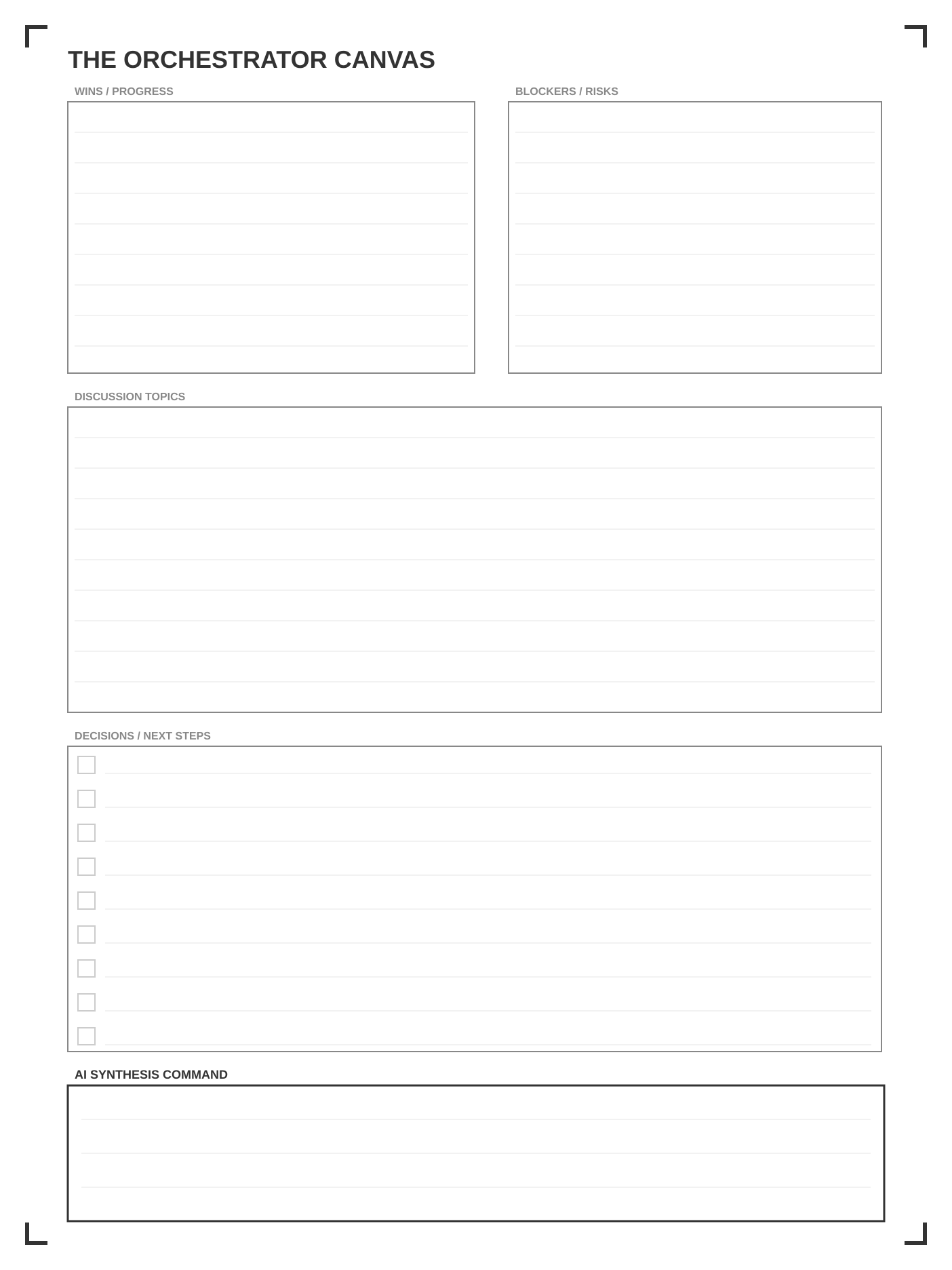
Who it's for: Managers, team leads, anyone running meetings or 1-on-1s.
Meeting notes are the single most common use case for e-ink tablets, and they're also the use case where AI can save you the most time. The Orchestrator Canvas has pre-structured zones for attendees, agenda, notes, decisions, action items (with owner and deadline columns), and blockers.
After a meeting, you export the page and ask Claude to "Extract all action items with owners and deadlines, summarize the key decisions, and flag any unresolved blockers." Because every zone is clearly labeled, the extraction is almost always perfect on the first try.
4. Innovators Canvas
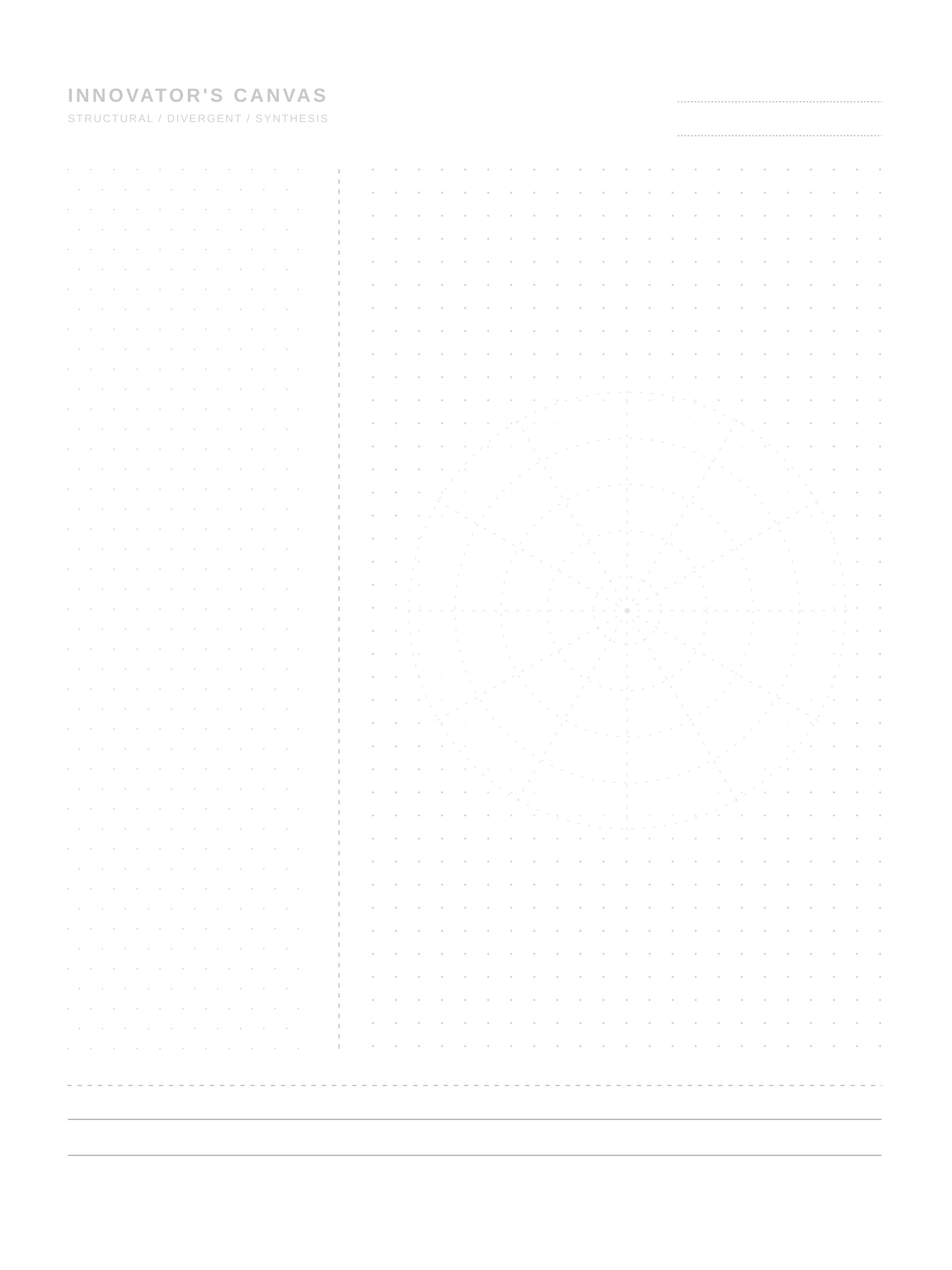
Who it's for: Designers, creative leads, anyone in ideation mode.
Brainstorming is inherently messy, and that's fine. The Innovators Canvas doesn't try to force structure onto creative thinking. Instead, it provides a large central zone for freeform capture and surrounds it with smaller zones for themes, connections, and "strongest ideas." Think of it like a mind map with guardrails.
The AI command area here shines when you ask it to "Identify the three strongest themes from my brainstorm and suggest next steps for each." Because you've likely circled or starred your best ideas in the "strongest ideas" zone, the AI has a clear signal about what you think matters most.
5. AI-Optimized Notebook
Who it's for: Everyone. This is your daily carry.
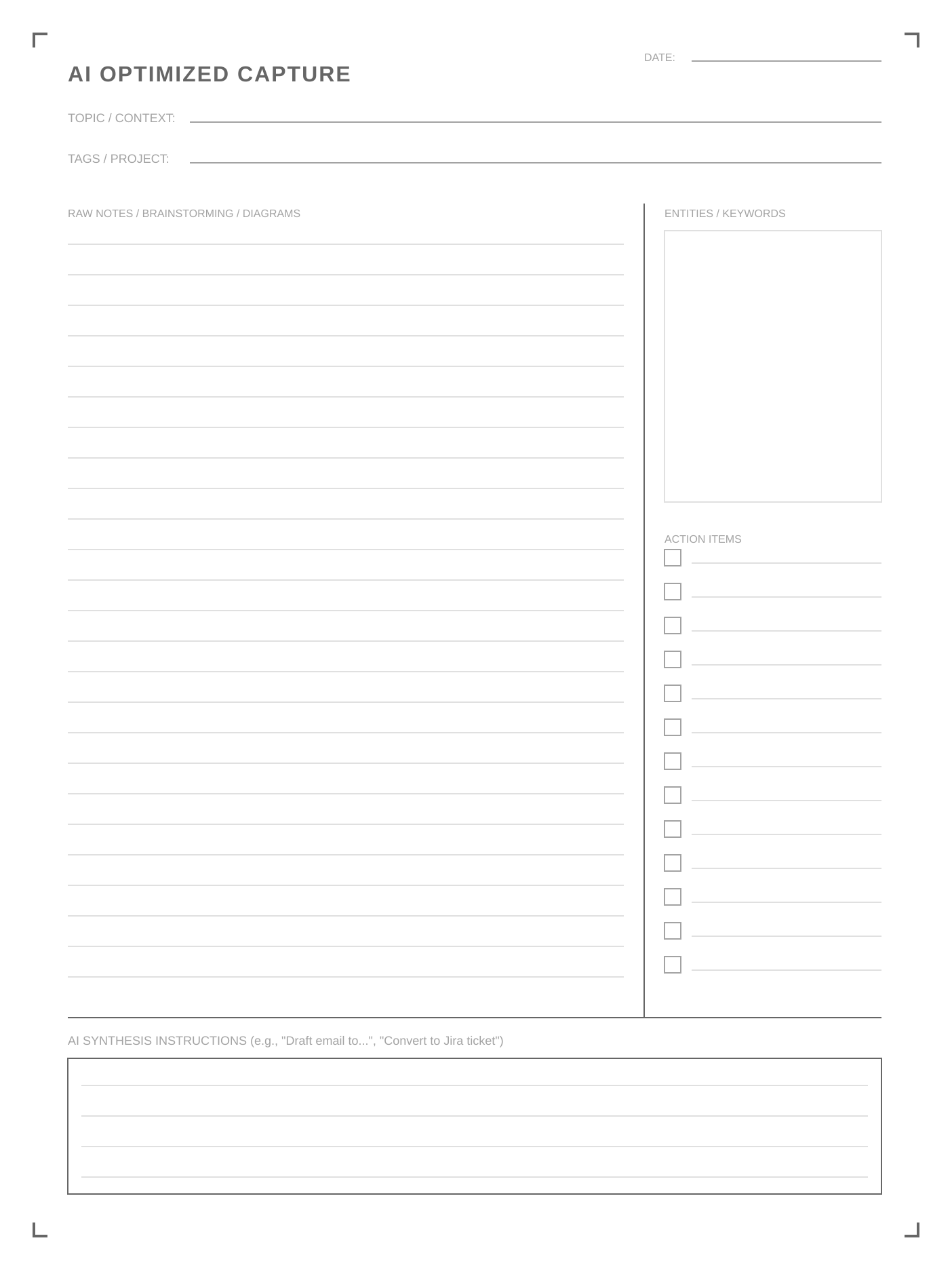
Not every page needs a specialized layout. Sometimes you just need to take notes. But even general notes benefit from structure. The AI-Optimized Notebook looks like a regular lined page at first glance, but it has a context header at the top (date, subject, tags), a slim sidebar for highlighting key points, and the AI command area at the bottom.
This is the template you use when you don't know which template to use. It's general enough for anything but structured enough that AI can still extract meaningful output from it.
How to Install Templates on the Paper Pro
If you've never loaded custom templates onto a reMarkable, the process is simpler than you'd expect. Here's the full walkthrough:
- Download the template files. Grab the PNGs from our template gallery. You want PNG format for reMarkable templates, not PDF.
- Connect your Paper Pro via USB. Plug it into your computer. The device shows up as a USB drive on most operating systems.
- Navigate to the templates directory. On the device filesystem, go to
/usr/share/remarkable/templates/. This is where all the built-in templates live. - Copy your PNG files. Drop the template PNGs into this directory.
- Edit the template config. Open
templates.jsonin the same directory. Add an entry for each new template with a name, filename, and icon category. The format is straightforward -- just copy an existing entry and modify it. - Restart the device. Hold the power button, wait for it to shut down, then turn it back on. Your new templates appear in the template picker.
Alternative: Use the reMarkable desktop app
If you don't want to mess with the filesystem directly, you can also import templates through the reMarkable desktop app by converting PNGs to the correct format. Third-party tools like RCU (reMarkable Connection Utility) make this even easier with a drag-and-drop interface.
The Handwriting-to-AI Pipeline
Having great templates is step one. The real magic is the workflow you build around them. Here's the pipeline I use daily:
- Write. During meetings, planning sessions, or just thinking time, I use the appropriate template on my Paper Pro. I fill in the context header, take notes in the structured zones, and write my AI command at the bottom.
- Export. When I'm done, I email the page to myself as a PDF using the reMarkable's built-in share feature. Takes about 10 seconds.
- Ingest. I drop the PDF into Claude (or whatever model I'm using that day). Along with the PDF, I include a meta-prompt that tells the AI how to interpret the template zones.
- Extract. The AI reads the template structure, interprets my handwriting within each zone, executes the command I wrote at the bottom, and returns structured output.
- Act. The output goes directly into my task manager, document, or wherever it needs to go. No manual transcription. No copy-pasting from notes.
The entire pipeline from "done writing" to "structured digital output" takes under two minutes. Compare that to manually transcribing meeting notes, and you start to see why this changes things.
Tips for Better AI Parsing
After hundreds of pages through this pipeline, here's what I've learned about getting consistently good results:
- Print your keywords. Cursive is fine for flowing notes, but key terms -- names, dates, technical terms -- should be printed clearly. The AI can handle cursive, but it's more reliable with print for critical words.
- Use the zones. Don't let your notes bleed across zone boundaries. If you run out of space in one zone, continue in the margin of that zone, not into the next one. The AI uses boundaries to categorize content.
- Be specific in your AI command. "Summarize this" is okay. "Extract all action items with owner, deadline, and priority, then list unresolved questions" is much better. The more specific your command, the more useful the output.
- Fill in the context header. Always write the date, subject, and any relevant tags. This metadata helps the AI disambiguate content and connect it to the right project or meeting.
- Circle or star important items. Visual emphasis translates surprisingly well. When you circle something or put a star next to it, the AI treats it as higher priority.
Beyond Single Pages: Building a Knowledge System
The real power of AI-optimized templates isn't any single page. It's what happens when you process dozens or hundreds of pages through the same pipeline over weeks and months.
Each page becomes a structured data point. Your meeting notes from Q1 become a searchable archive of decisions and commitments. Your brainstorm sessions become a library of ideas tagged by theme. Your architecture sketches become a living record of how your system evolved.
This is where the "AI-optimized" part really matters. Because every page follows the same structural grammar, you can run aggregate queries across your entire archive. "Show me all action items assigned to me that are still open." "What were the three most common blockers across all my 1-on-1s last month?" These questions become answerable because the templates enforced consistent structure from the beginning.
What's Coming Next
We're building a custom template generator that lets you describe what you need in plain English and get a fully structured, AI-optimized template back in seconds. Auto-sized for your specific device, with all the zone markup and anchor markers built in.
The idea is that you shouldn't be limited to the five templates in our collection. If you need a specific layout for your specific workflow -- say, a user interview template with sections for quotes, pain points, and feature requests -- you should be able to describe it and have it generated instantly.
Download the full template collection
All five AI-optimized templates, free. PNG format, ready to load onto your reMarkable Paper Pro.
Get Free Templates →The Paper Pro is a beautiful device. But a beautiful device with stock templates is just a nice notebook. Add AI-optimized templates and a handwriting-to-AI pipeline, and it becomes something fundamentally different: a capture system that feeds directly into your AI workflow, with zero manual transcription.
That's the gap these templates fill. Not prettier pages. Smarter pages.
The templates are open source, free, and ready to download. If you want to go deeper, check out our step-by-step Claude AI workflow guide for the complete pipeline walkthrough, or see how the Paper Pro compares to other devices in our e-ink tablet comparison.